Simplifi Sign – your virtual token
Forget the physical token. Simplifi Sign brings your qualified certificate to your computer, Windows or macOS, ready to use in the Romanian tax portal (SPV ANAF), REGES, SEAP, Adobe Reader and any app that requires an electronic signature.
Simplifi Sign – your virtual token for Windows and macOS
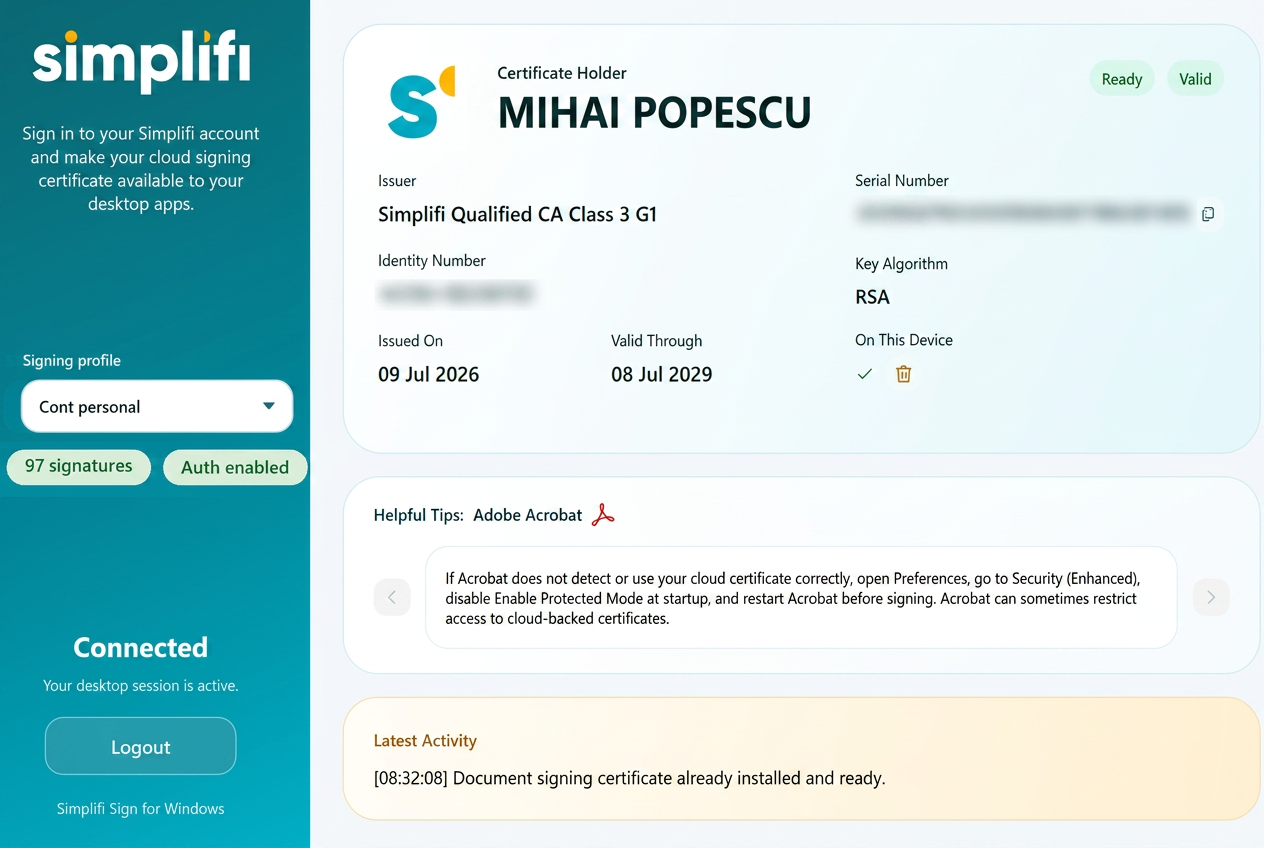
Simplifi Sign is the desktop app that simulates the presence of a physical USB token, allowing users to authenticate on websites such as SPV ANAF and REGES and sign Adobe documents outside the Simplifi cloud app. The app is available on every plan: local signing (Adobe Reader, smart PDFs, .p7s) works on the free plan too, while certificate authentication in portals (SPV ANAF, REGES) is included in the paid plans, from Personal (€1/month billed annually).
The app is available for Windows 10 and 11 (Microsoft Store) and for macOS (.pkg package, beta). You need administrator rights on your computer to install it.
Where it works
Portals and apps where Simplifi has used Simplifi Sign successfully. The date is that of the last check. Local signing is included in the free plan; certificate authentication in portals is available on paid plans, from Personal (€1/month).
- PNRR (proiecte.pnrr.gov.ro)
Verified on 17 October 2026 · local signing: included in the free plan
- SPV ANAF and e-Factura
Verified on 17 October 2026 · certificate authentication: paid plans
- REGES Online (Labour Inspection)
Verified on 17 October 2026 · certificate authentication: paid plans
- AFM (Environmental Fund)
Under verification · certificate authentication: paid plans
- Adobe Acrobat Reader (smart PDF, AFIR)
Verified on 17 October 2026 · local signing: included in the free plan
- .p7s for SEAP (EU DSS Standalone)
Verified on 17 October 2026 · local signing: included in the free plan
Step-by-step guides
Everything you need to use Simplifi Sign day to day: download the confirmation letter, log in to the app, access SPV ANAF and sign in Adobe. Open each guide for detailed steps and a demo video.
How to download the confirmation letter for ANAF / banks
The signed confirmation letter for any valid certificate is one click away from the Identity section of your account. Institutions such as ANAF (SPV) and banks may request this document.
How to log in to Simplifi Sign
In Simplifi Sign you log in with the credentials from the app.simplifi.ro platform. No additional password/PIN required. Once logged in, the program runs in the background.
How to access SPV ANAF using Simplifi Sign
First, the Simplifi certificate must be registered with ANAF through the certificate registration/renewal procedure (using the confirmation letter downloaded from your account). Once the certificate is registered, with Simplifi Sign running in the background, open the SPV ANAF site and choose digital certificate authentication. The browser automatically detects your qualified certificate, with no physical token connected.
How to sign in Adobe using Simplifi Sign
In Adobe Acrobat Reader choose “Sign with a digital certificate”, pick the certificate exposed by Simplifi Sign and apply your qualified signature directly on the document — no extra steps.
Got a PDF form with a signature field (AFIR, PNRR, ANAF)? See the smart PDF guide.
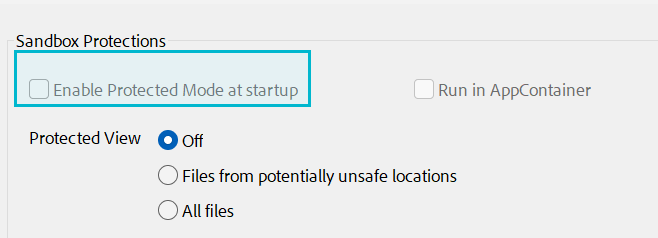
VERY IMPORTANT — first time using Adobe with Simplifi Sign
Go to Menu / Preferences (Ctrl+K) → Security (Enhanced) and disable the “Enable Protected Mode at startup” option, which is enabled by default in Adobe. Without this step, Adobe cannot communicate with Simplifi Sign to use your qualified certificate.