
Smart PDF with a signature field: sign with Simplifi Sign, not by web upload
Some institutions (AFIR, PNRR, ANAF) distribute PDF forms with fillable fields and a signature field drawn into the document. These are signed locally, in Adobe Acrobat Reader, with your Simplifi certificate exposed by Simplifi Sign. If you upload them to a web signing service, any vendor's, the form breaks.
Why web upload does not work
A "smart PDF" (AcroForm or XFA form) contains data fields the portal reads automatically and a predefined signature field where the institution expects the signature. The portal's validation checks the signature in exactly that field and the data in exactly those fields.
Web signing flows (including ours at app.simplifi.ro) take the PDF, flatten it and add a new signature at a position you choose. The result is a valid, qualified-signed document, but without the original fields, so the portal rejects it or cannot read it. AFIR's FAQ states explicitly that web-based remote signing services do not work for its forms.
The solution is local signing: Adobe Reader fills the form's signature field with a certificate from the system certificate store. Simplifi Sign puts your Simplifi qualified certificate there, exactly like a USB token.
Steps
- 01
Install Simplifi Sign and log in
Windows 10/11 from the Microsoft Store or macOS from the .pkg. Log in with your Simplifi account; your certificate appears in the system certificate store (on Windows, see certmgr.msc > Personal).
- 02
Disable Protected Mode in Adobe Reader (Windows)
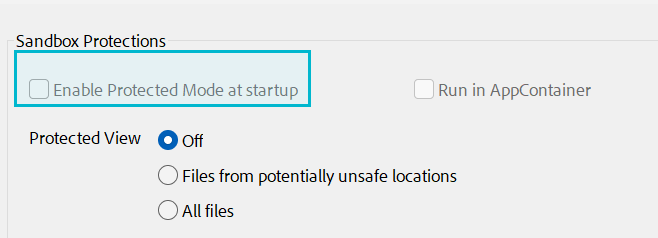
Edit > Preferences > Security (Enhanced) > untick "Enable Protected Mode at startup", then restart Adobe Reader. Without this step Reader cannot access the certificate.
- 03
Download the original form and fill it in
Use the file exactly as published by the institution (not a copy passed through another program). Fill in the fields in Adobe Reader and save.
- 04
Sign in the signature field
Click the form's signature field. Pick the Simplifi certificate (issuer "Simplifi Qualified CA"), confirm in Simplifi Sign and save the signed file. If the form has several signature fields, repeat for each.
- 05
Verify and upload
In Reader's Signatures panel the signature must show as valid. Upload the file to the portal with no further processing (do not print, rescan or pass it through another editor).
Video: signing in Adobe Reader with Simplifi Sign
Common problems
- The Simplifi certificate does not appear in Adobe Reader's list
- Simplifi Sign is not running or Protected Mode is on. Start the app, log in, disable Protected Mode and restart Reader.
- The portal says the form is unsigned or data is missing
- The form was flattened (signed via web or saved from another program). Start again from the original form and sign locally in Reader.
- The signature shows "valid, but identity unknown" in Reader
- Reader has not yet downloaded the EU Trusted List (EUTL). Edit > Preferences > Trust Manager > Update now for the EUTL. Validity for the portal does not depend on this display.
Frequently asked questions
- Is a signature made in Adobe Reader with Simplifi Sign qualified?
- Yes. The private key stays in Simplifi's qualified device (QSCD); Simplifi Sign only brokers the operation, and the certificate is qualified. The resulting signature is QES, PAdES format.
- Does it use up the free signatures?
- No. Local signatures through Simplifi Sign do not count against the 5 free web signatures per year.
- Does it work on macOS?
- Yes, Simplifi Sign has a macOS version (beta) and Adobe Reader for Mac uses certificates from Keychain. The Protected Mode step is Windows-specific.
- Can I sign the form with a program other than Adobe Reader?
- Some portals validate only signatures made in Adobe. We recommend the free Adobe Acrobat Reader for maximum compatibility.